

Do you use affiliate links to make money on your WordPress website? Would you like to set up affiliate link tracking in Google Analytics and find out how those links perform?
Using Google Analytics to track affiliate links can be tricky, especially for beginners. Luckily, with MonsterInsights, you can tell Google Analytics to track affiliate link clicks on your WordPress site in a few simple steps.
After you set up affiliate link tracking, you’ll be able to see which of your pages and links generate the most revenue and adjust your marketing for optimal results.
In this article, we’ll show you how to set up affiliate link tracking in WordPress using Google Analytics.

Start Tracking Your Affiliate Link Clicks Today!
Table of Contents
- Benefits of Affiliate Link Tracking on WordPress
- How to Track Affiliate Links with Google Analytics
- View Your Affiliate Link Tracking Report
- How to Set Up WooCommerce Affiliate Link Tracking
- Affiliate Link Tracking in WordPress FAQ
Let’s kick things off…
Affiliate Link Tracking Video Tutorial
Why Set Up Affiliate Link Tracking on WordPress?
Affiliate marketing is a great way to make more money online. You can sign up for different affiliate programs and then promote products to your audience to make an affiliate percentage from every sale.
Once you add affiliate links to your website, you’ll want to track them to keep tabs on which ones are performing the best. When you know which links are performing well and which ones aren’t bringing in any revenue, you can put more of your time and energy toward the ones that work the best.
The best way to track your affiliate link clicks so you can focus on promoting the right products is with MonsterInsights. It’s the best Google Analytics plugin for WordPress, and it includes affiliate link tracking right out of the box.
Here are more benefits of setting up affiliate link tracking with MonsterInsights:
1. See All Affiliate Link Clicks in a Single Report
As an affiliate marketer, you might want to promote several products that use different affiliate programs like Commission Junction, Amazon Associates, and ShareASale. Or, you may have different affiliate products listed on your WooCommerce store.
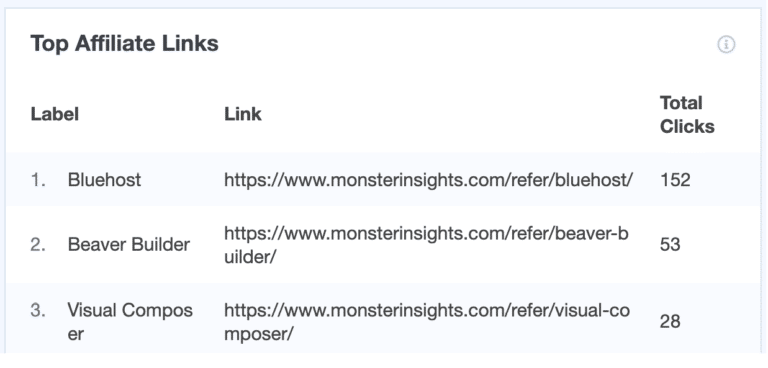
With MonsterInsights affiliate link tracking, you can see how much traffic you send to each product, regardless of which affiliate program you’re using.
You can see how each product is performing at a glance without leaving your WordPress dashboard.
2. Earn More by Comparing Traffic vs. Revenue
Imagine you’re promoting 2 rival products (let’s say an Amazon Fire Stick and a Roku) on your site, and you’re making more revenue from the Fire Stick than the Roku.
But from the affiliate tracking report in MonsterInsights, you realize that you’re actually sending more traffic to the Roku.
This means that if you work on sending more traffic to the Fire Stick (which is a higher-converting product), you could earn more affiliate revenue.
Without an affiliate link tracking report, you won’t be able to easily review the number of visitors you send to each product. That’s why tracking each affiliate link helps you optimize your site to grow your revenue.
3. Focus on Higher Performing Products
Another benefit of an affiliate tracking report is that it lets you see how many clicks your affiliate links are receiving per page.
Imagine you’re promoting 10 different products in a listicle and figure out the product you placed in the 4th position in that article is receiving more clicks than the product you placed in the first position.
This clearly shows that you might want to move up the 4th-listed product in your list, and move the #1 listing down, because your readers aren’t as interested in that product.
That way, you can send more traffic to the product that converts better and generates more revenue.
With that, let’s see how to track affiliate links in Google Analytics.
How to Track Affiliate Links in Google Analytics
Follow these steps and you’ll be able to see detailed data on your affiliate links.
To set up affiliate link tracking in Google Analytics and WordPress:
- Install and Activate MonsterInsights
- Redirect Affiliate URLs with Pretty Links
- Set up Affiliate Link Tracking in MonsterInsights
Step 1: Install and Activate MonsterInsights
First, you’ll need to install MonsterInsights on your WordPress website. MonsterInsights allows you to set up affiliate link tracking in WordPress with just a few clicks – no need to modify your Google Analytics code.
To get affiliate link tracking, grab MonsterInsights at the Plus level or above, then download the plugin from your Account page.
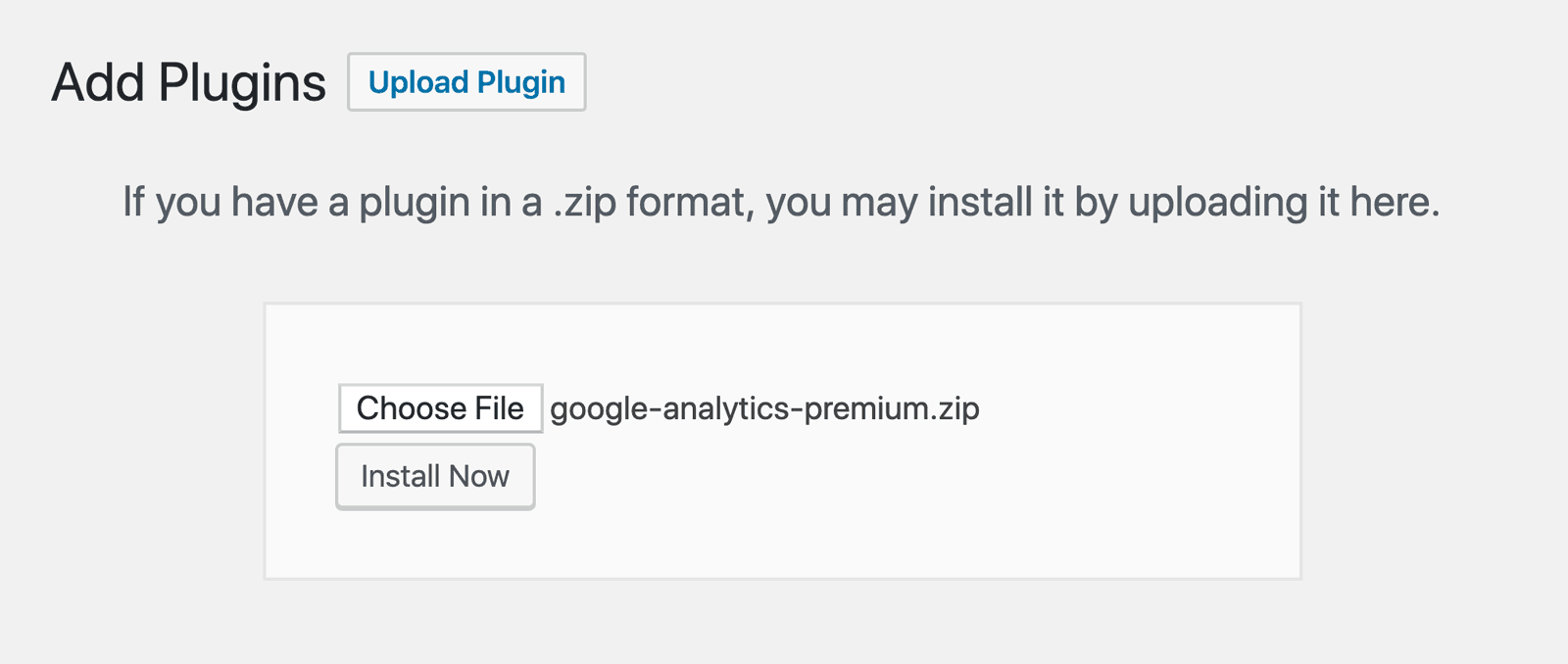
Next, upload the plugin on your WordPress website by going to Plugins » Add New » Upload Plugin and then click the Install Now button.
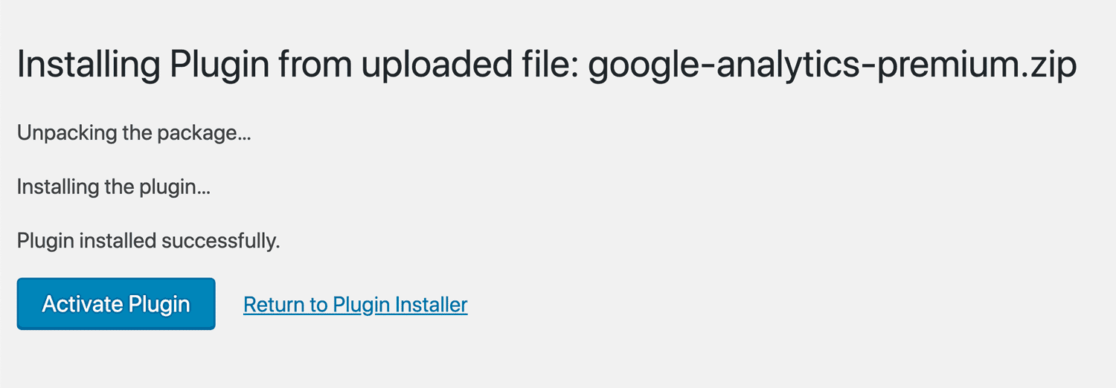
Now, activate MonsterInsights by clicking the Activate Plugin button.
After installing and activating the plugin, you’ll need to connect it with Google Analytics. The MonsterInsights setup wizard makes it super simple to add Google Analytics tracking code to your website.
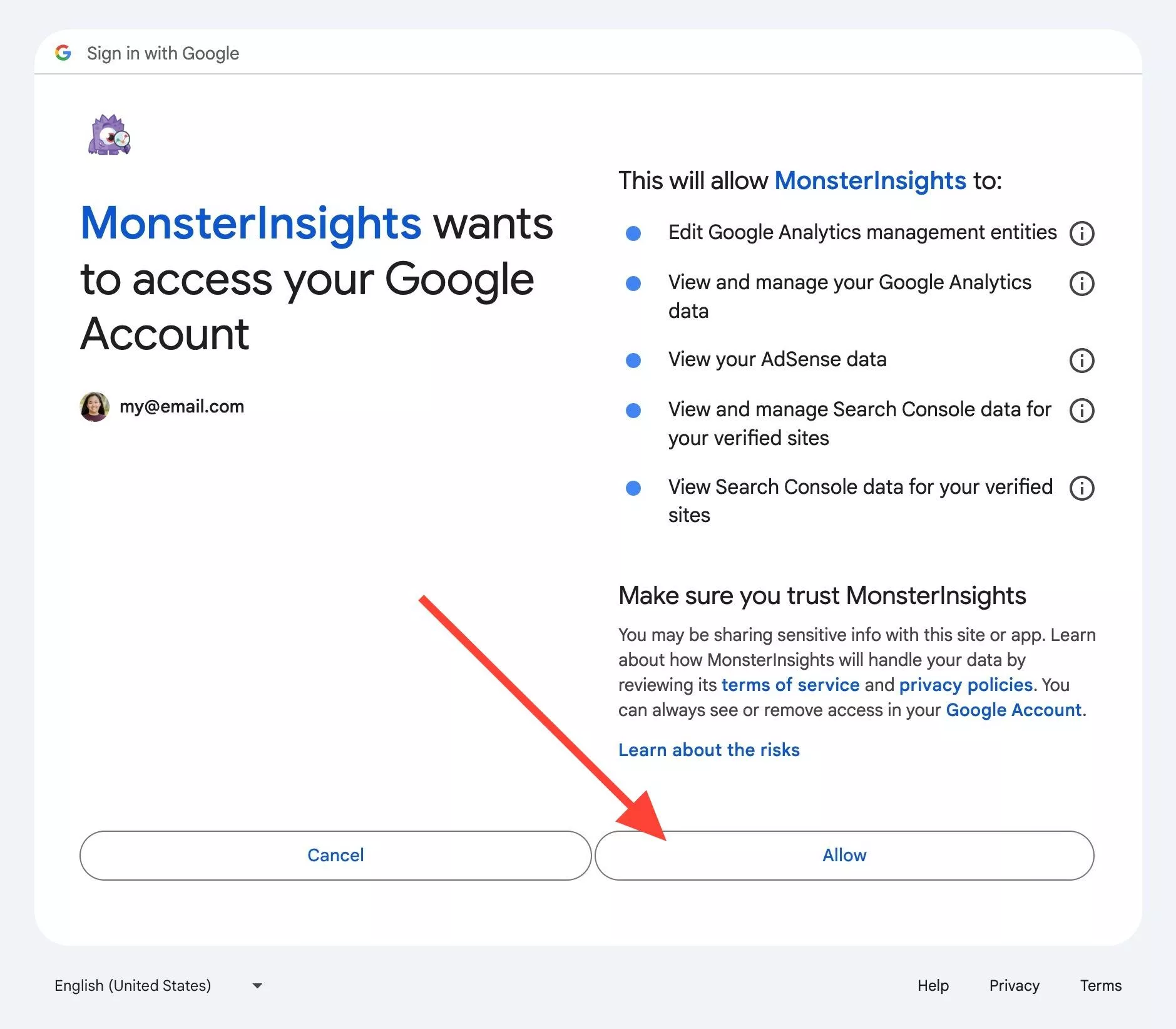
For more details on how to get set up, read our step-by-step guide on how to set up Google Analytics on your WordPress website properly.
Step 2: Redirect Affiliate URLs with Pretty Links
In order to track your affiliate link clicks with MonsterInsights, you’ll need to cloak your affiliate URLs using a plugin like Pretty Links.
Note: If you’re an Amazon Affiliates user, don’t cloak your links. Follow our Amazon tutorial instead: How to Track Amazon Affiliate Links in WordPress (Easy Way).
To install the Pretty Links WordPress plugin, go to your website’s dashboard and then click Plugins » Add New. Then search for Pretty Links and click Install Now.
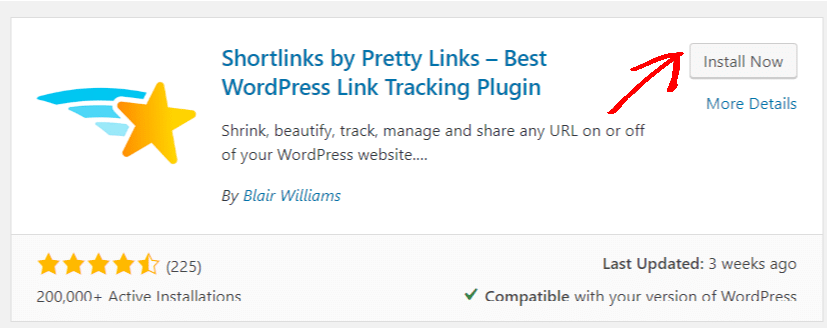
Once you install the plugin, it should appear in your WordPress dashboard. Click on Pretty Links to view their welcome screen.
Next, click Add New to enter an affiliate link to Pretty Links.
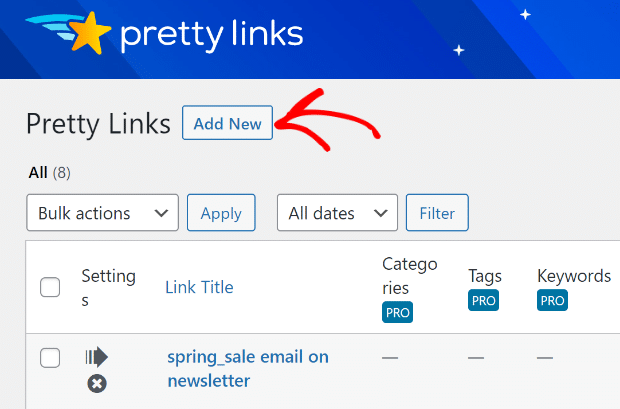
Now, you get to set up your link.
What you need to do here in order for MonsterInsights to track your affiliate links is redirect all your ugly affiliate links to URLs that include the same path.
Let’s pretend that your website is mycoolsite.com, and you’ve got affiliate links for MonsterInsights on your site. MonsterInsights’ affiliate program is through ShareASale. So, your affiliate link to MonsterInsights will look something like this:
http://www.shareasale.com/r.cfm?B=601672&U=123456&M=49337&urllink=
With Pretty Links, you can redirect that link and make it whatever you want it to be. You create a new URL on your own domain, then redirect it to your ShareASale link.
For instance, your new URL might be mycoolsite.com/affiliate/monsterinsights. That’s what users will see when they click the link.
Here’s a look at how this is going to look in Pretty Links:
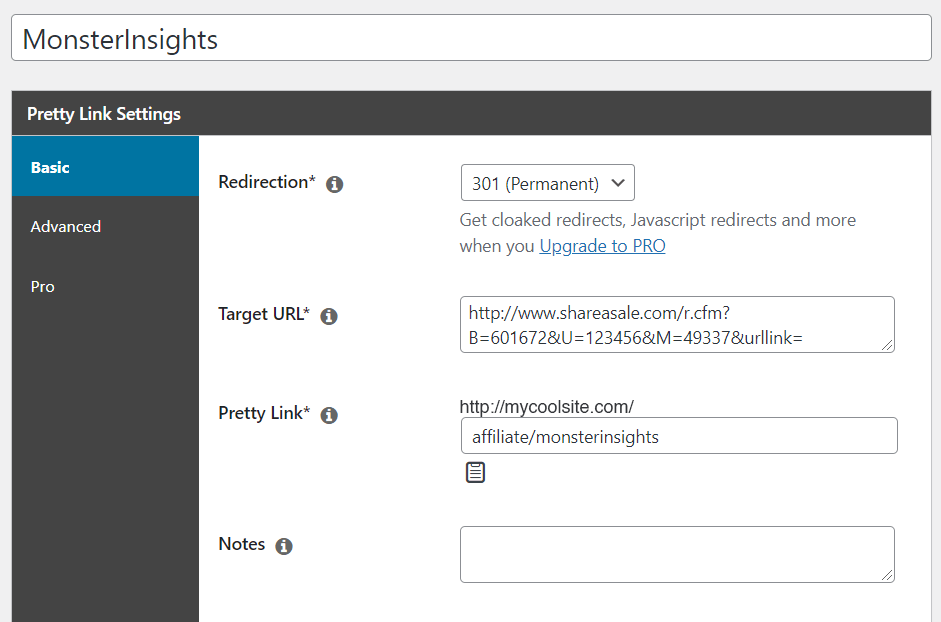
Now, users will see and click on the URL: mycoolsite.com/affiliate/monsterinsights
and be redirected to: http://www.shareasale.com/r.cfm?B=601672&U=123456&M=49337&urllink=.
Note: Make all your links have the same path in them. We used /affiliate/ above, then the product name. You could also use /refer/product-name or /go/product-name, or something else.
Step 3: Set Up Affiliate Link Tracking in WordPress
Now that your affiliate links are redirected to pretty URLs, you can set up tracking in MonsterInsights.
Navigate to Insights » Settings and click on the Publisher tab at the top of the page, and then to the Affiliate Links section.
We used /affiliate/ in the link we created above, so that’s what we want to track with MonsterInsights. Put /affiliate/ or whatever URL path you chose in the Path box, then a Label. The Label is what appears in Google Analytics, so make it something you’ll remember.
You can track multiple different paths, and organize different links however you’d like. To create another path, click the Add Another Link Path button and repeat the process.
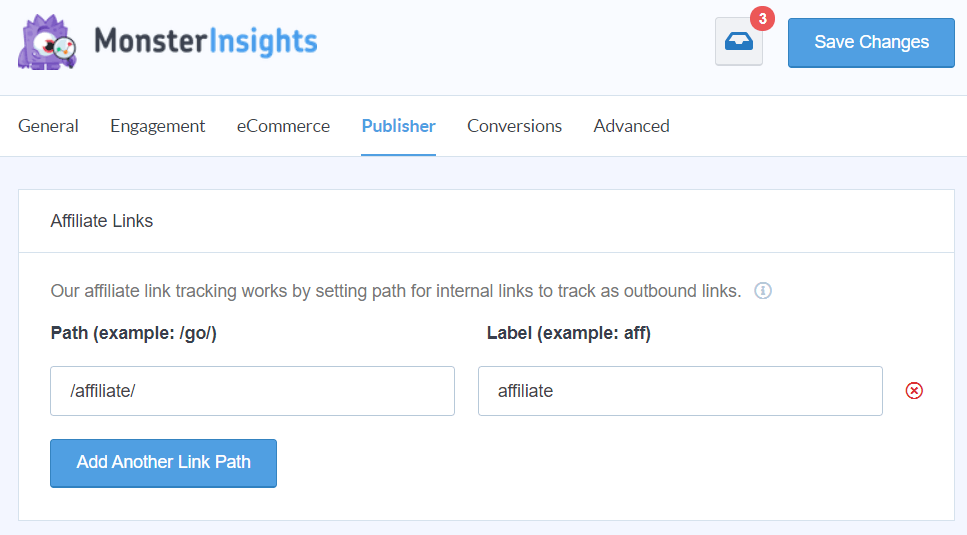
After filling in these 2 fields, click Save Changes.
Finally, choose how you want your MonsterInsights report to look by choosing which link is used in the report:
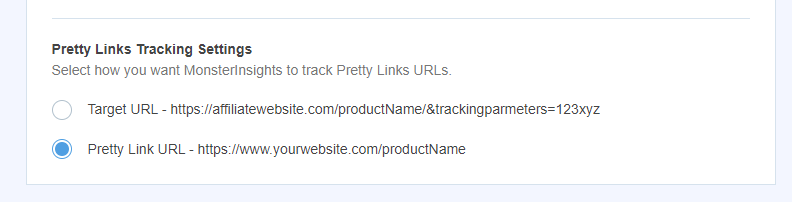
After that, MonsterInsights will automatically start to track the affiliate links you told it to track.
Now, let’s go over how to view your affiliate link tracking report.
How to View Your Affiliate Link Tracking Report in WordPress
Now, you can see the report inside your WordPress dashboard using MonsterInsights. It brings your important Google Analytics data to your admin area, and you don’t have to leave your website.
Go to Insights » Reports » Publishers and scroll down to Top Affiliate Links to see the report.
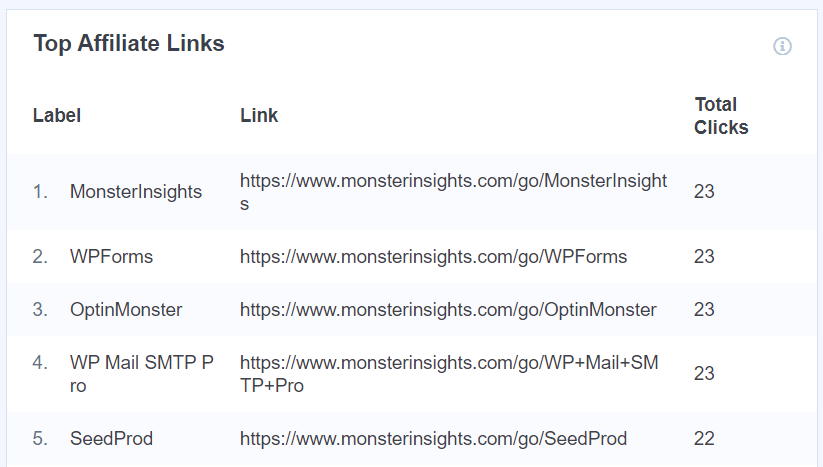
How to View Your Affiliate Link Tracking Report in Google Analytics
Want to see which of your site pages a user was on when he clicked your affiliate links? To do that, we’ll build a custom exploration report in Google Analytics.
If you’ve never built a custom exploration report before, you can check out our tutorial on How to Create a Custom GA4 Exploration Report.
To start, head to the Explorations tab in Google Analytics, then click to create a Blank report:
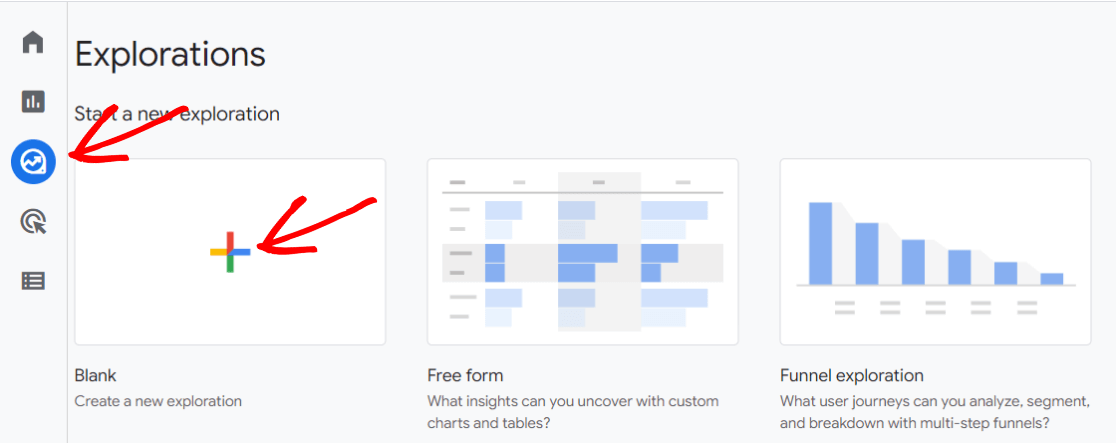
Then, click the plus sign in the Dimensions box:
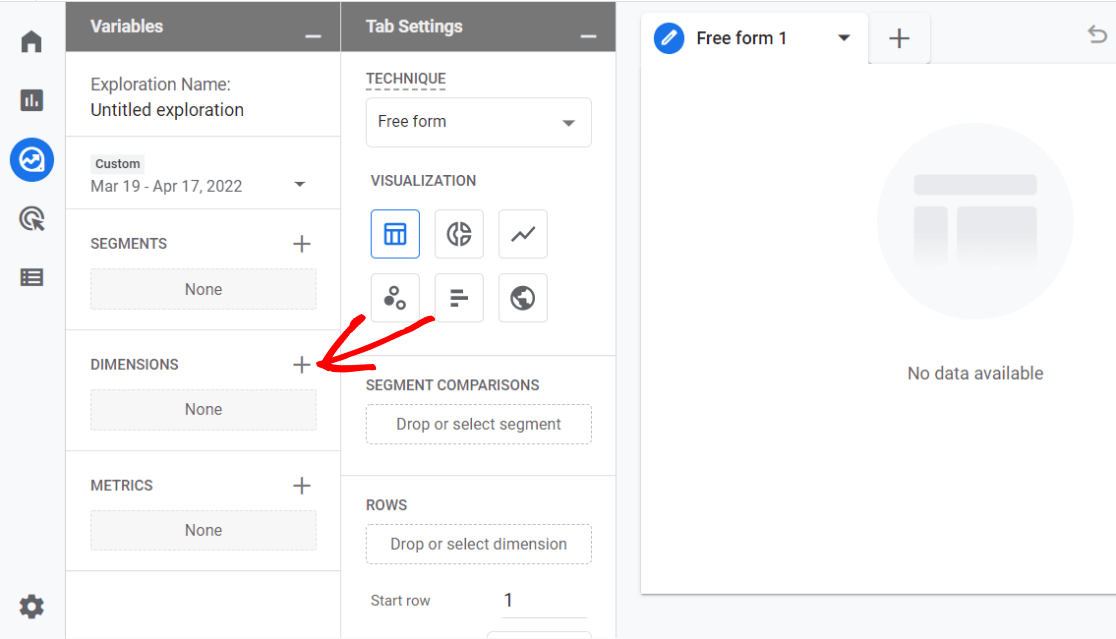
Search for and import the following dimensions:
- Is affiliate link
- Link text
- Page title
- Event name
- Affiliate label
Now, click the plus sign in the Metrics box and add and import:
- Event count
Next, click and drag Link text, Affiliate label, and Page title from the Dimensions box over to Rows.
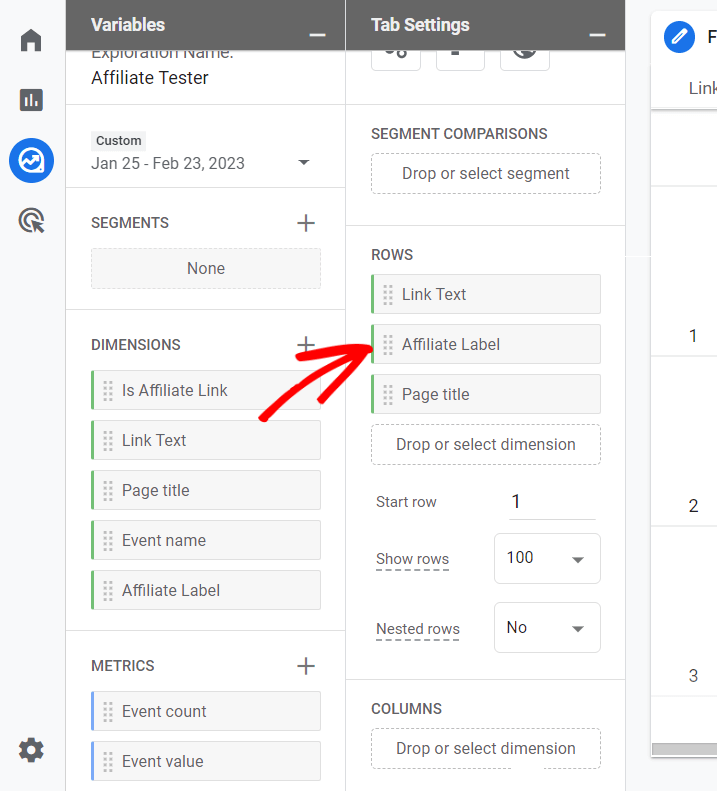
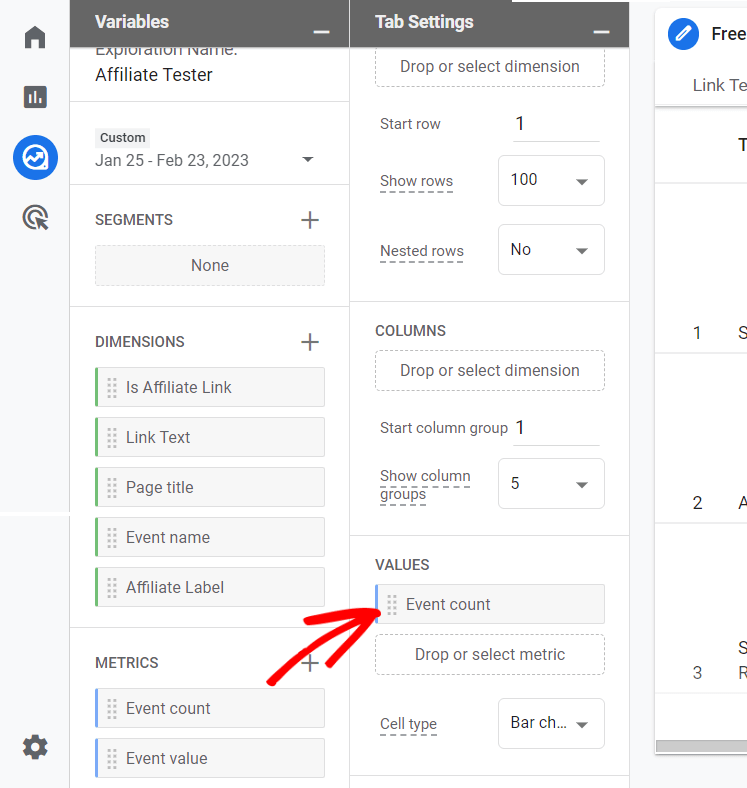
Also drag Event count from Metrics to Values.
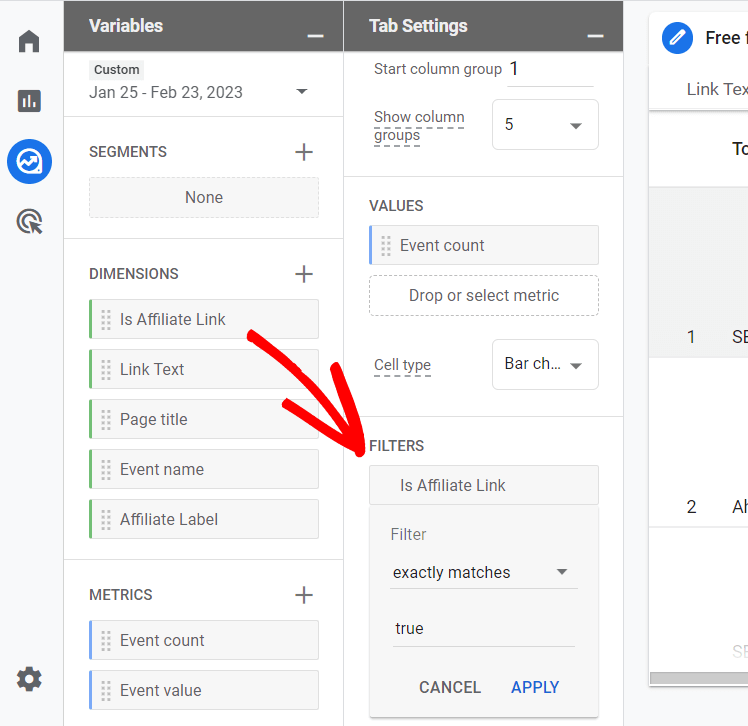
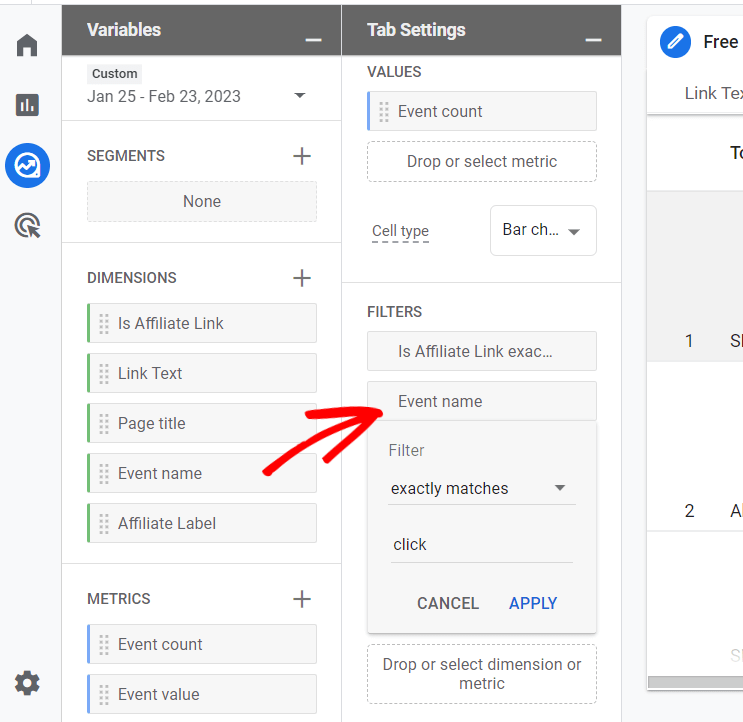
Finally, we need to add some filters for the report to work correctly. Click and drag Is affiliate link from dimensions to filters, choose exactly matches and true, and click Apply:
Then, click and drag Event name from dimensions to filters and choose exactly matches and click:
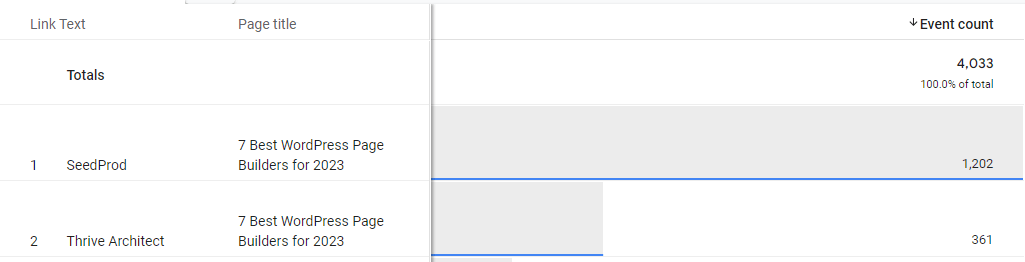
That’s it! You’ve built your custom affiliate link report, and you can now see which links were clicked on which pages on your site. Keep in mind that event count = clicks.
Now, let’s find out how to track WooCommerce affiliate links in WordPress.
How to Set Up WooCommerce Affiliate Link Tracking
Besides affiliate links in your content, if you have a WooCommerce store and have different external/affiliate products on your online store, MonsterInsights will automatically track them.
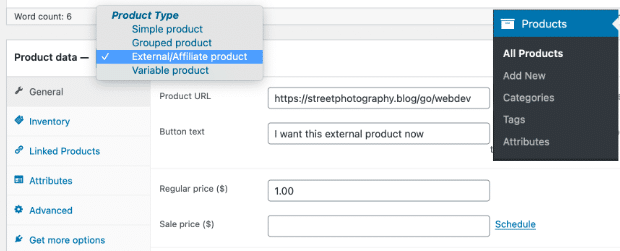
To start, enter the URL of your affiliate link in WooCommerce by going to Products » Add New and scroll down to the product data meta box.
Next, select External/Affiliate product from the drop-down menu, enter a product URL, button text, and regular price. Once that’s done, Publish your product.
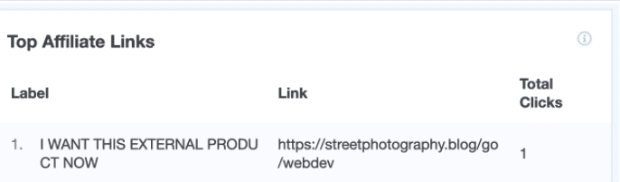
MonsterInsights will now automatically track WooCommerce affiliate link clicks. You can view the report in your WordPress dashboard by going to Insights » Reports » Publishers » Top Affiliate Links and see which affiliate is getting the most clicks.
Start Tracking Your Affiliate Link Clicks Today!
That’s it!
Using MonsterInsights, you can now see how your website’s affiliate links are performing. Accurate affiliate link tracking data should help you grow your affiliate revenue.
We hope this article helped you set up affiliate link tracking in WordPress.
If you want to learn more about making money with affiliate programs, you might like to read about the best affiliate plugins for WordPress!
Want to know how to track more link and button clicks on your site? Check out How to Track Link Clicks in Google Analytics 4 and WordPress.
Finally, don’t forget to follow us on Facebook and YouTube for more helpful Google Analytics tips.
Affiliate Link Tracking FAQ
What is affiliate link tracking?
Affiliate link tracking is a way to monitor and track the performance of your affiliate links. It helps you track how many clicks an affiliate link receives, how many conversions it generates, and the revenue it produces.
How do I track affiliate links in WordPress?
To track clicks on affiliate links in WordPress, you can use MonsterInsights and Pretty Links. First, use Pretty Links to create shortened and branded links that hide the original affiliate link. Then, use MonsterInsights to track and monitor the number of clicks on these affiliate links. You’ll get a report on affiliate link clicks right in your WordPress dashboard, and you can also view the data in Google Analytics.
Why is affiliate link tracking important for WordPress website owners?
Affiliate link tracking helps WordPress website owners understand the effectiveness of their affiliate marketing efforts. It provides valuable insights into which affiliate links are performing well and which ones need optimization.
Can I track affiliate link clicks in Google Analytics?
Yes, it is possible to track affiliate link clicks in Google Analytics by using custom tracking parameters or by setting up event tracking. However, this requires additional configuration that’s not easy for non-coders. If you’re using WordPress, the best way around this is by using MonsterInsights.
How often should I analyze and optimize my affiliate links?
It is recommended to regularly analyze and optimize your affiliate links, especially if you notice underperforming links. Monitor your conversion rates, click-through rates, and revenue generated by each affiliate link to identify areas for improvement.